Docker
Start with Docker part 1 - From Development to Release in Seconds
Docker is a tool allowing us to build Containers with a pre-configured environment which can run on every computer with Docker installed. Docker uses special dockerfile which contains a list of commands to execute by the new container, and finally, run our <strong>application</strong> in precise the same environment among all our machines.
What is Docker
Docker is a tool allowing us to build Containers with a pre-configured environment which can run on every computer with Docker installed. Docker uses special dockerfile which contains a list of commands to execute by the new container, and finally, run our application in precise the same environment among all our machines.
Sample usage
Let's imagine that you are hosting a web application with external database. Think about the time you have to spend on moving the application from your developer machine to the server. You are never sure that all versions of dependencies and frameworks on your development machine will fit the server machine. What is more, you also have to spend lots of time on the configuration of the server machine to fit the requirements. Maybe your client will ask you to present the product but you are not sure that it will work on his computer. Those problems and much more will be solved with Docker!
Some history
Docker Inc. is a company built on the Docker project with more than a 500 employees, based in San Francisco, California. The company was funded as dotCloud in 2010 and renamed to Docker in 2013. The year 2014 was the most successful for Docker when they announced a partnership with Microsoft and their services started being supported by Amazon Elastic Compute Cloud. Docker is priced at around 1B$.
How does Docker work
Understanding the way how Docker works is crucial to start using it in a real project.
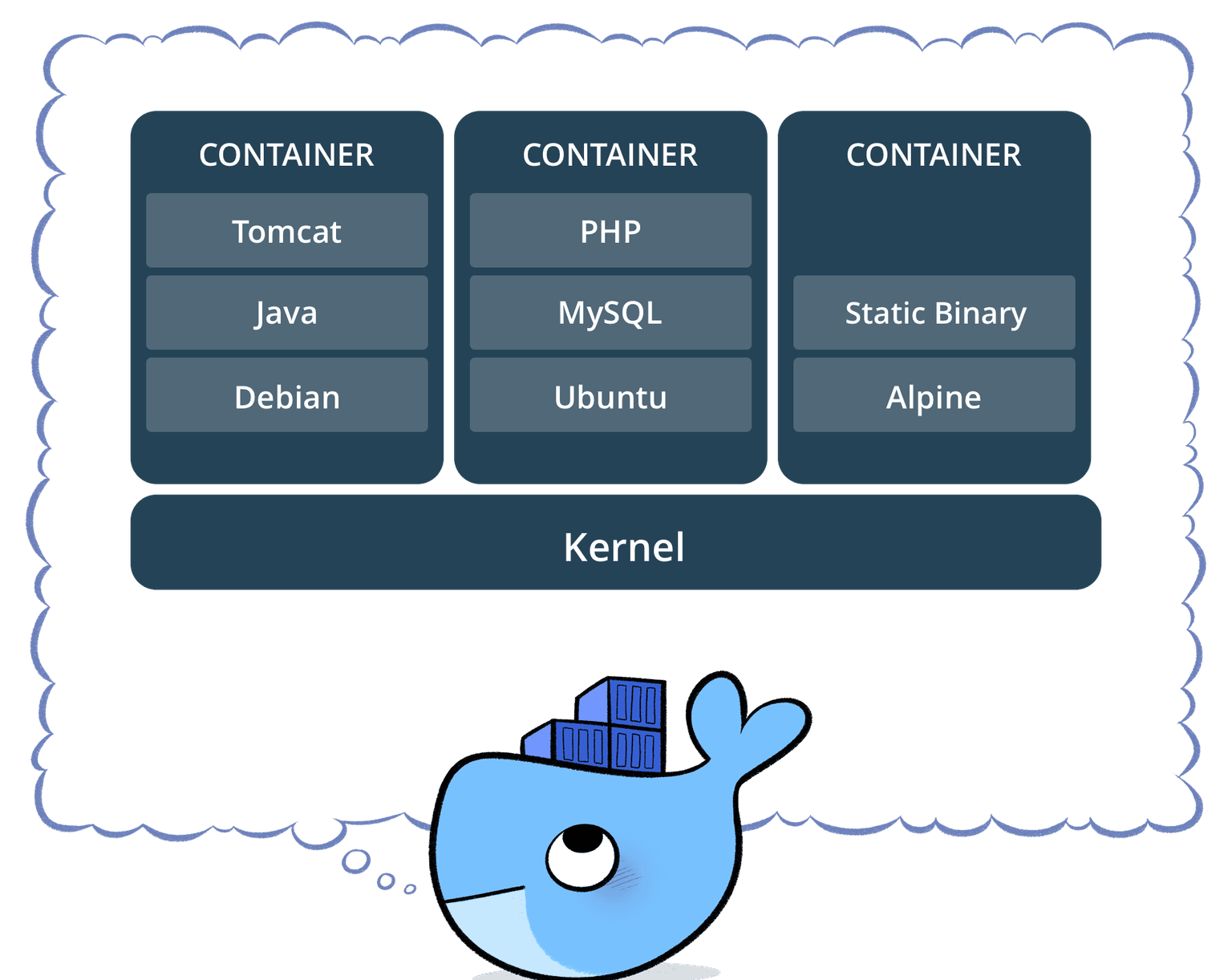
There are few new concepts which you have to get familiar before starting:
- Image is a lightweight environment prepared to run using as fewer resources as possible. Images are usually based on Linux. The Images can be associated with Virtual Machines which are relatively similar, despite they use more computer resources and work in a bit different way. If you want to read about differences between them, click here.
- Container is a running instance of the image. A container can run a few environments at the same time, but its recommended to divide your application into smaller environments to make them work independently and to ease the process of updating the software. The Container is connected straight-forward to the Kernel and use its resources in the most effective possible way. One computer can run many containers at the same time.
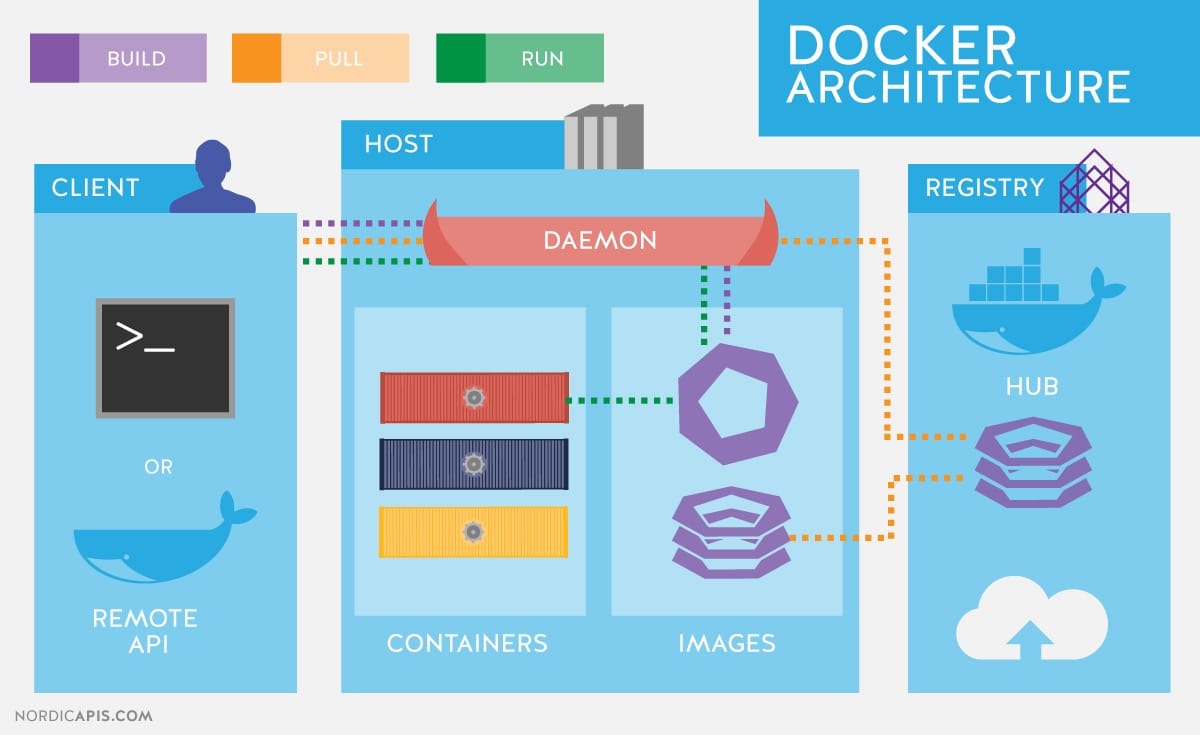
The easiest way of dividing architecture of Docker is to divide it into three parts:
- Client-side is responsible for sending commands to the host. Most often, the user uses commands to communicate with the daemon. The client can use special Dockerfile which is allowing him to pre-configure the environment by giving a list of commands to execute and list of images to pull from the hub. Dockerfile is a recipe for our perfect environment.
- Host-side is responsible for handling user requests. It also builds and hosts the containers, pulls the images from the cloud and makes sure, that all the files are accessible. Daemon is building a new image using pre-defined DockerFile.
- Registry which is a catalogue of the images stored in a cloud. The daemon can pull images from a public Docker cloud. We can explore it using this link. Docker hub hosts images of eg. Ubuntu, node, MySQL, .NET Core and others.
Before we start
Before we start with our first example, make sure that Docker is installed on your machine. All Community Edition (CE) versions are available to download here including Windows, Mac and Linux. NOTE: In terms of this tutorial, do not use Windows containers.
First Docker Container
The first container we create will be C# application based on .NET Core 2.1. We can easily browse all images of .NET Core on the official docker hub website. Let's start by checking if our environment is configured correctly. To do this, open the Console (Windows cmd.exe) and type:
The output should look similar to this:
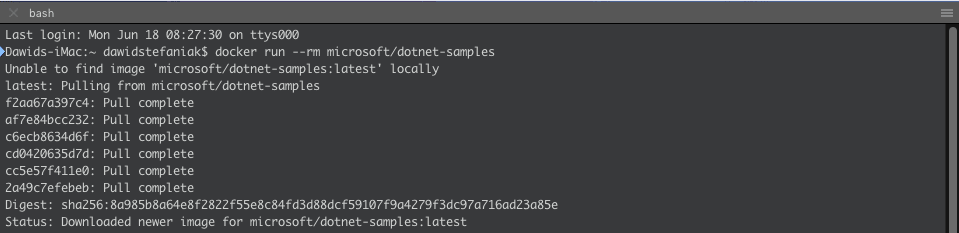
Docker should automatically pull our repository from the cloud. We can check if our image was correctly pulled using:

As we can see, our image was pulled correctly. To start a new container, we have to run our image. The most recommended way to start the container is to run the image using its IMAGE ID. In my example, it will be 1eae85b77c3f. The output should be similar to this:
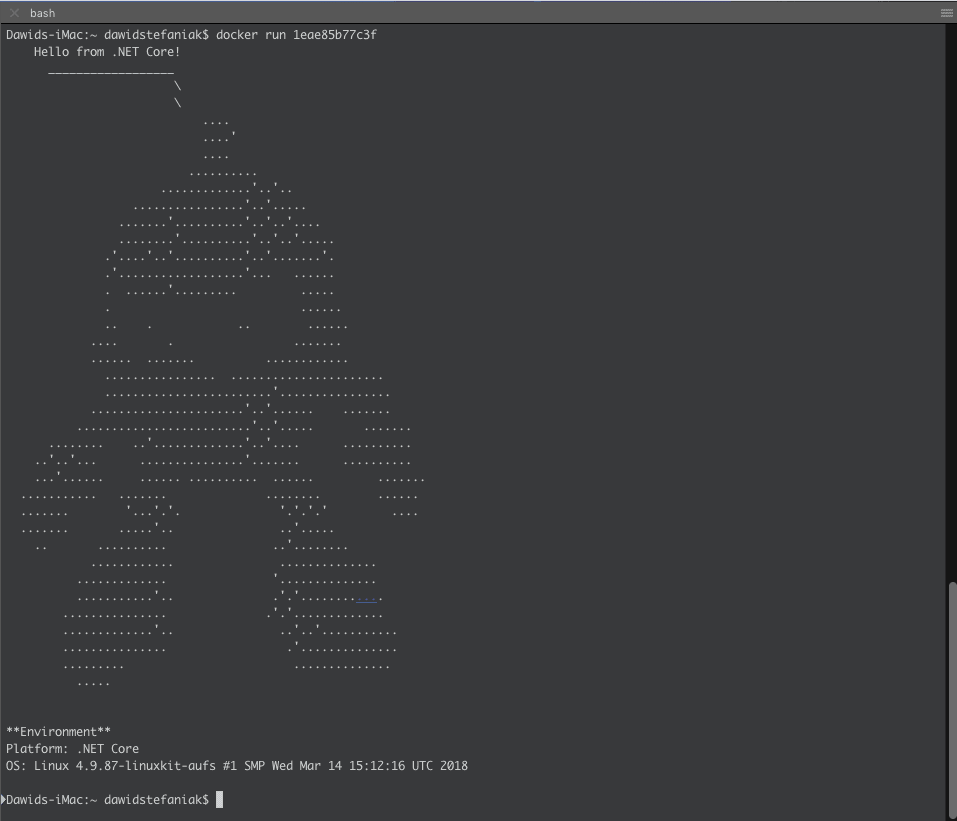
It means that our Hello World .NET Core program executed correctly and our environment is working properly. On the bottom of the output, we can see, that our platform was .NET Core.
Next Steps
In the next Tutorial, I will give you an overview of how to create your own container and execute your own .NET Core console application.