Vue.js
Vue.js - Getting Started
This article will focus on Getting Started with Vue.js, what is Vue.js and why is it amazing tool for the current development process. Having many other tools, why is it better to use Vue.js instead?
This article will focus on Getting Started with Vue.js, what is Vue.js and why is it amazing tool for the current development process. Having many other tools, why is it better to use Vue.js instead?
What is Vue.js?
Vue is a JavaScript framework created to build user interfaces in more organised and simplier way than using pure JavaScript on our page. Vue is a modular framework, which divides our website into smaller, reusable elements. Vue focuses on the View Layer of the web applications and allow user to easily integrate additional js libraries as well as import plugins created particularly for Vue. Vue can be used only in particular parts of the system (Single-Page Applications), as well as a core of the bigger projects.
Why Vue?
It is always great to listen to people feedback! Vue is one of the highest starred repositories on GitHub with over 146 thousand stars at the moment. People point out, that Vue is easy to learn and also can be easily implemented in already working web applications.
Vue itself focuses on creating an easy to understand the environment for the frontend developers and giving them tools to expand the functionality of their web-applications.
Vue ecosystem consists of tools which simplify the development of the app. This includes vue-router to create single-page application routing, vuex to manage states in large-scale applications, vue-CLI to scaffold the project an amazing devtools which are installed and used on google chrome.
You can find more information here.
Before we start
To start comfortably with Vue.js, *we have to *install a set of tools:
- Visual Studio Code + Vetur extension (this will allow us to see the syntax and some code snippets)
- Node.js (https://nodejs.org/en/)
- Vue-CLI (use
npm install -g @vue/clicommand which will work if you have Node.js installed)
Get Started with Vue.js
To make you familiar with Vue.js, we will create a small web application which will change the colour of the text on the button click.
Firstly, we have to create a new folder for our application. Let's call it getting-started-vue. Inside this folder, create a new file and call it index.html. Then open the Visual Studio Code and open this folder and select index.html. In index.html write *html:5 *and click enter. This will scaffold a basic HTML template.
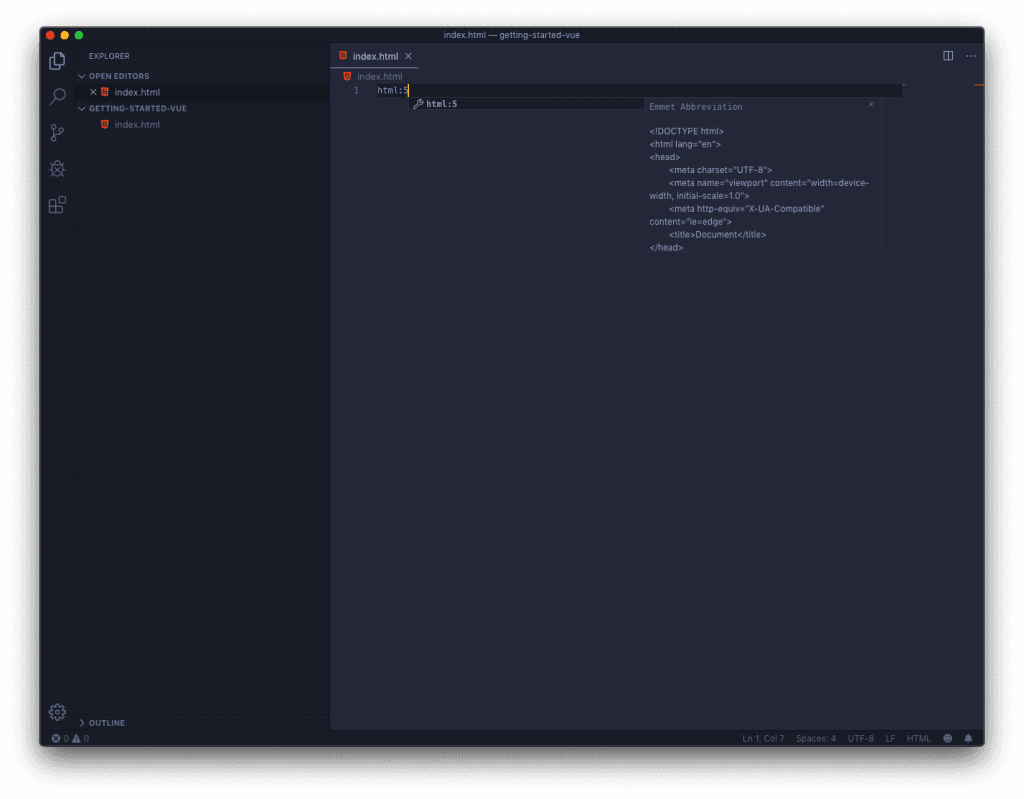
Now we have to import Vue.js. Simply add this line between header:
<script src="https://cdn.jsdelivr.net/npm/vue/dist/vue.js"></script>
Now we are ready to create the first line of code. To start off, replace the whole body tag with the following:
<body>
  <div id="app">
    <h1>{{message}}</h1>
  </div>
</body>
<script>
  var app = new Vue({
    el: '#app',
    data() {
      return {
        message: 'Hello Vue!',
      }
    },
  })
</script>
Please remember, that data is a function which returns the data.
Script tag will create an instance of Vue. The full code should look as follow:
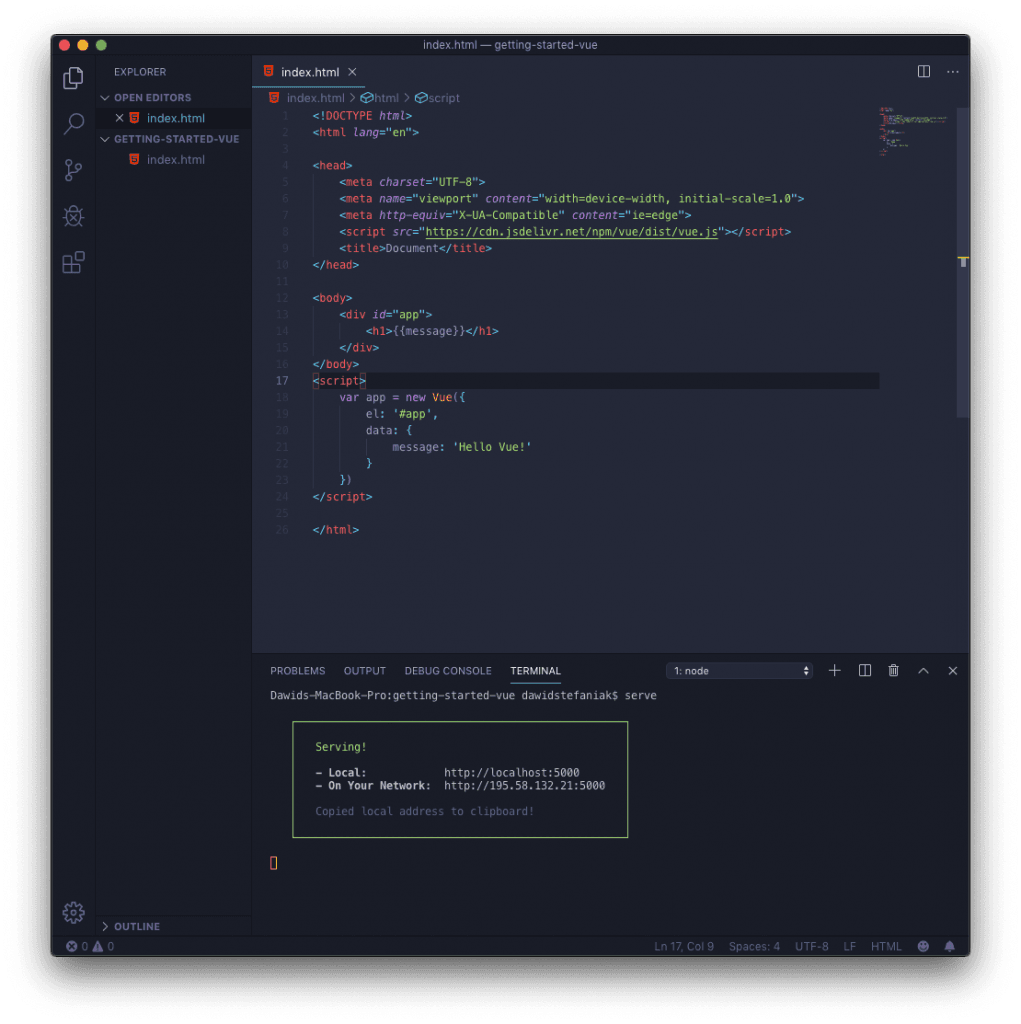
The el attribute has to point on the div element between which the web application is created. This will allow us to reactively bind different Vue elements to the view.
The data attribute will store the variables which then we can use in our HTML DOM. The simplest way to use them is to surround the variable with double curly braces as we did in this example.
The easiest way to run our app is by starting an HTTP server. We can do it using a serve package. We can install it by writing *npm install serve -g * in the console.
Visual Studio Code has a built-in console. We can open it by clicking View-> Terminal on the top. The terminal will be open on the same folder as we are in in the Visual Studio. To run our server, we can simply write * serve * command to start the HTML server. Open Google Chrome and open the link shown in the terminal (default one is http://localhost:5000)
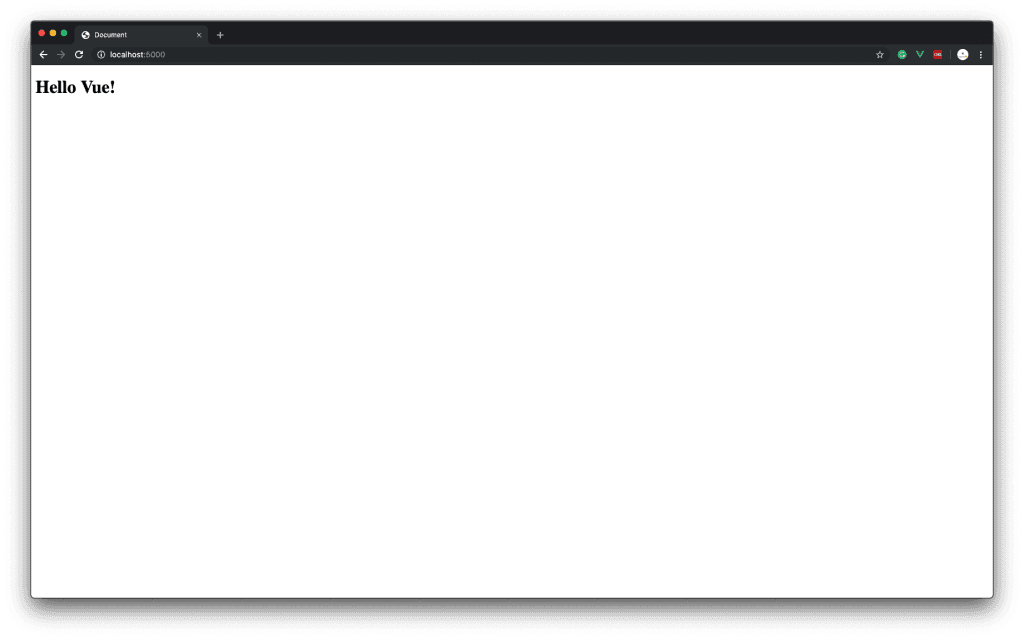
*Hooray! *Now we are able to see our first Vue application.
Let's move to the Vue devtools, which are extremely useful when we start creating our Vue applications. You can download them from Chrome Web Store here.
After the installation, click on the Vue icon on the top bar. This should show the information that Vue.js was detected, and the colour of the icon should change from grey to green.
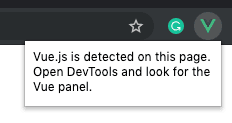
If you don’t see Vue icon, make sure that Vue.js chrome-extension is properly installed and your active tab is the Vue app.
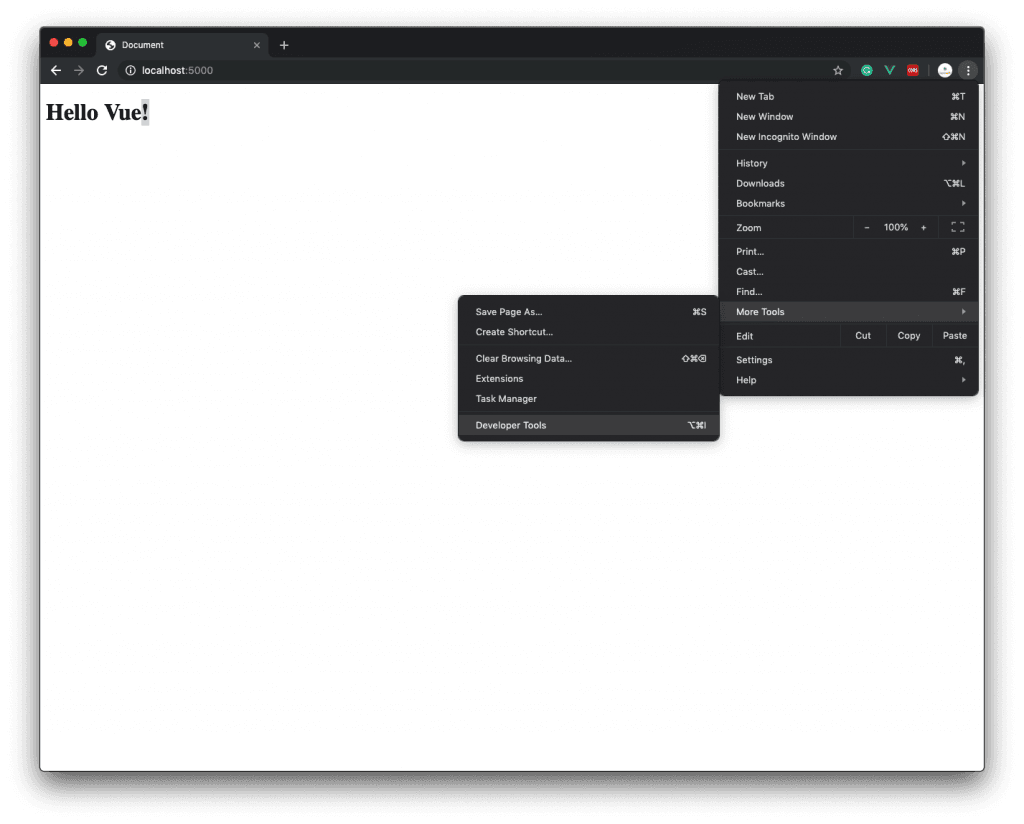
To open devtools, click on three dots on the top right corner of the window then More Tools -> Developer Tools.
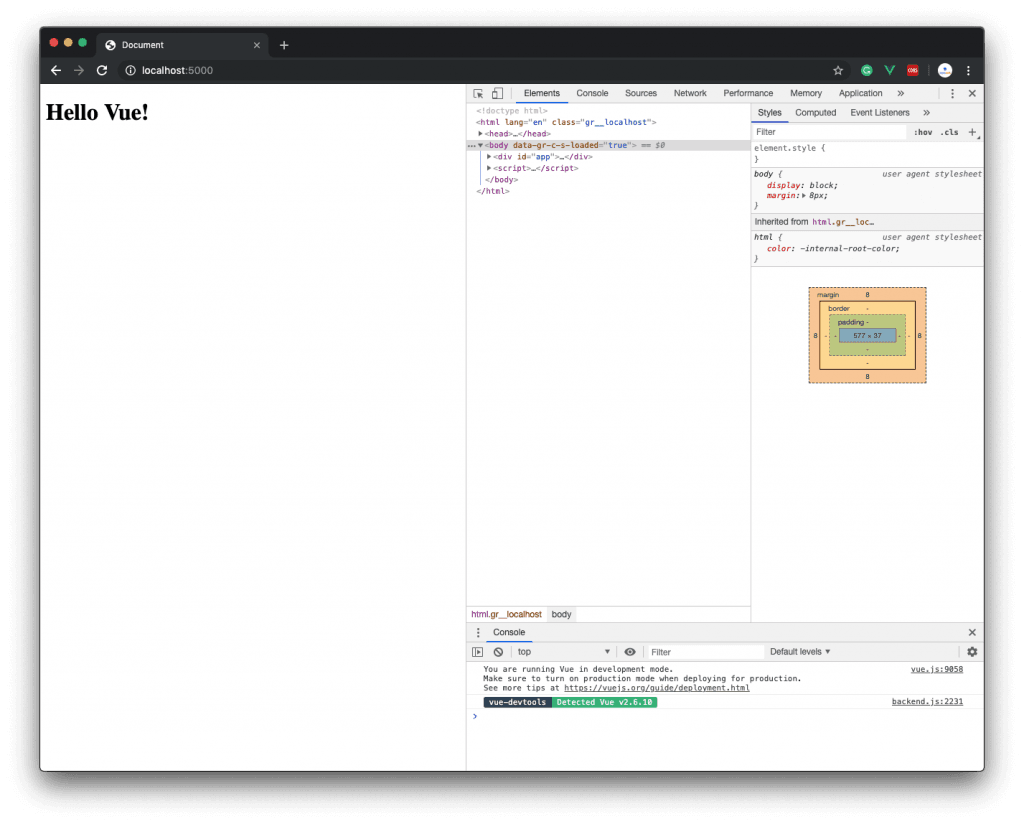
We will be welcomed with a kind message in the console that Vue is running in the development mode.
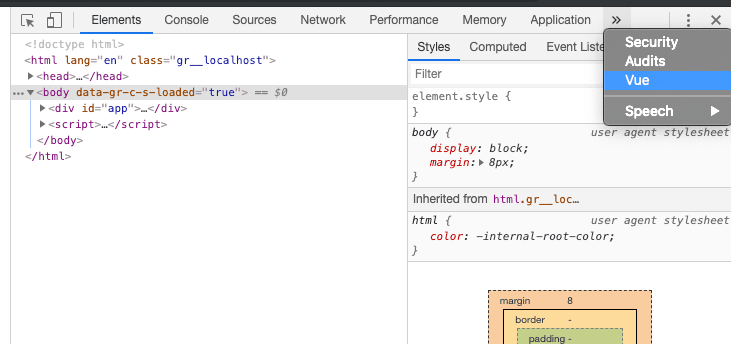
To open Vue devtools, we need to click on the arrows on the top right corner and choose Vue.
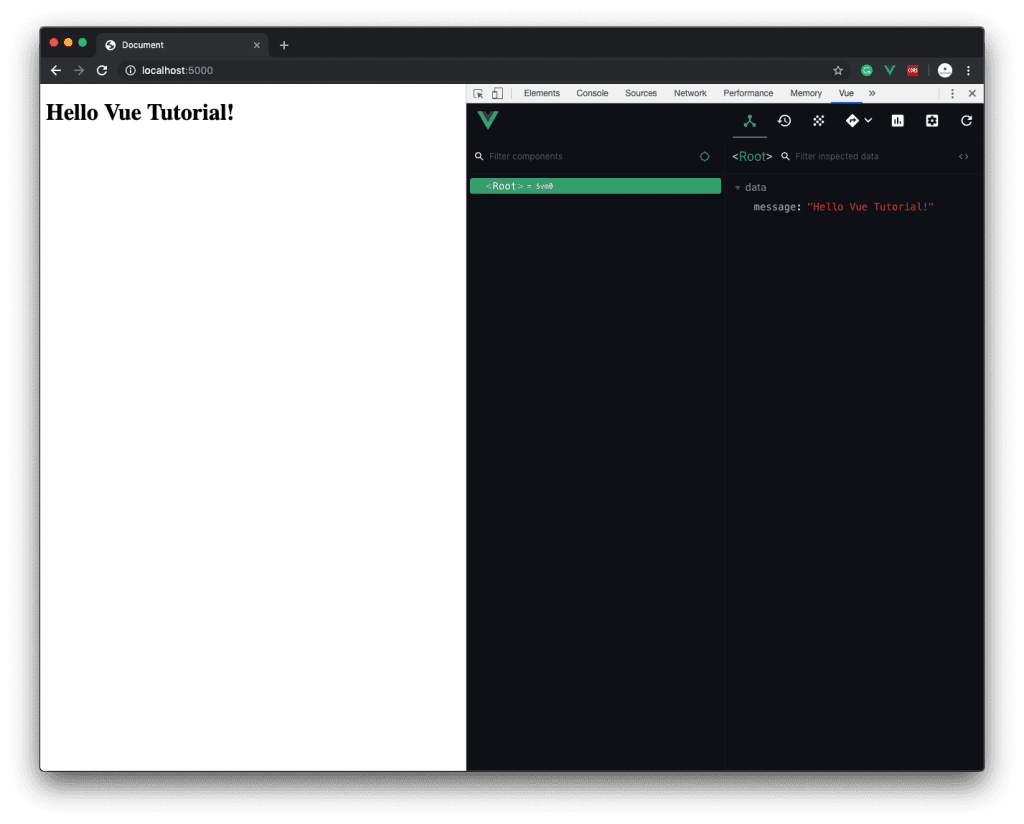
Then click on <Root> element. This should show us the data tree which we created in our HTML file.
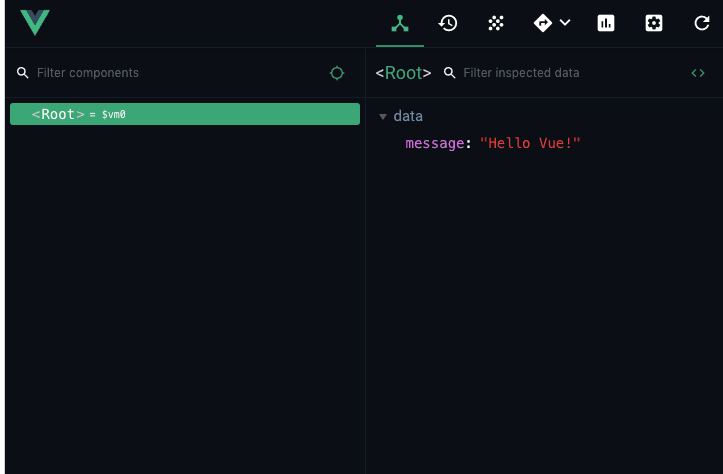
Because of the reactive nature of the Vue, we can simply edit the text in the devtools. This will automatically update the website view layer. To do this, double click on the message and change it to "Hello Vue Tutorial!". After clicking enter, we should see the changes instantly.
Changing Text Colour
Vue implements an easy way to modify different attributes of the HTML DOM. We can bind the different variables from Vue to the HTML DOM attributes.
Let's create a variable called currentColor and set its value to red. Vue uses Camel Case, you can read more about it here: https://en.wikipedia.org/wiki/Camel_case.
data() {
    return {
        message: 'Hello Vue!',
        currentColor: 'red'
    }
}
To bind the currentColour variable to text CSS style, we have to use v-bind:style in HTML element:
<h1 v-bind:style="{color: currentColor}">{{message}}</h1>
The important point here is that "font-family" will be replaced by "fontFamily" in Camel Case. Style and Class binding in Vue requires Camel Case. This is pretty important tip which has made me waste few hours on figuring out how does the style binding work.
Vue will automatically bind additional CSS for the particular element. Binding in Vue.js is also reactive what means, that we can create a method which will change the currentColor value and it will automatically update the view layer.
V-bind attribute can be used to bind any kind of attribute to the HTML DOM.
Let's create a new method which will change the colour to blue if the current colour is red, and to red when the current colour is blue.
methods: {
    onButtonClick(){
        if(this.currentColor === 'red'){
            this.currentColor = 'blue'
        }
        else if (this.currentColor === "blue"){
            this.currentColor = 'red'
        }
    }
}
You can find full source code for this application on GitHub: https://github.com/dawidstefaniak/getting-started-vue
In Vue, *we have to define *the new section called methods where we store all of our methods. This will be right after the data attribute.
To change the colour, we need to find a way to call the method to change the colour. The easiest way is by *creating a button and assigning on click method *to it.
<button v-on:click="onButtonClick">Change Colour</button>
V-on binds different user interactions (like a mouse click or keyboard key presses)* to the particular actions* (in this case it will execute an onButtonClick method).
V-on can be replace by @ symbol. I like to read it as: "at click".
<button @click="onButtonClick">Change Colour</button>
Now let's test our application! After we click save in Visual Studio Code, we will be able to immediately see the difference.
Click few times on the button and see what happens with the data attributes in Vue devtools.
Congratulations! Your first Vue application is up and running!
You can find full source code for this application on GitHub: https://github.com/dawidstefaniak/getting-started-vue.
What next?
I recommend starting from reading the official Vue.js documentation which explains all the basic concepts of creating web applications in Vue.js:* https://vuejs.org/v2/guide/ *
We would love to hear your opinion. Would you be using Vue.js? Do you feel it is easy to use? Leave a comment below, we will try to answer all of them!